Showing posts with label Tutorials. Show all posts

Thursday, March 27, 2008

Photoshop CS 3 Tutorial - How to make a cool tech Header for your site

Photoshop CS 3 Tutorial :: How to make a cool tech Header for your site

In this tutorial you are going to learn how to create cool tech header for your site.



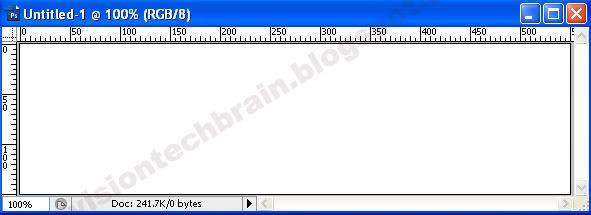
- Make a new file and enter size 550 pixels for the width and 150 pixels for the Height. Set the Resolution to 72 pixels/inch and set the Color Mode to RGB and 8 bit. Set the Background contents to White and click OK to open the new file.



- I'm going to use this image. You could download free images from
http://www.sxc.hu/index.phtml



- Open the image that you download it and dragged in to your new file. When you drag the image, Photoshop creates a new layer for the image automatically.



- Use Astract_Mega_Pack_ Brushes. You could download them from http://www.brusheezy.com

- Use
Brush tools to load the Brushes.


- Create two new layers named fx and fx2
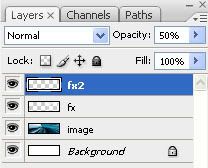


- Now use the Brush and paint any type of graphics you like into the image. Make sure you are in the correct layers (fx and fx2).



- Change the opacity of the fx layer to 40%

- Change the opacity of the fx2 layer to 50%

- Now create a new channel layer. You could name anything you like or just leave as Alpha1. Zoom in 3200%
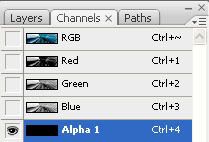


- Now use the
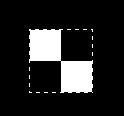
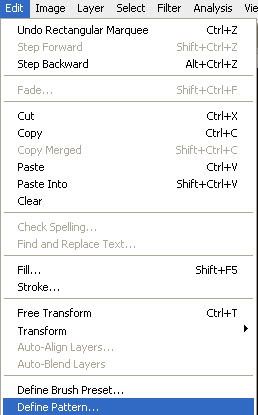
Pencil Tool and draw to dots like these. After you have finished, select the Rectangular Marquee Tool and make a square around the two dots that you made. Now you need to create the pattern Edit - Define Pattern


- Create a second new channel layer. You could name anything you like or just leave as Alpha2
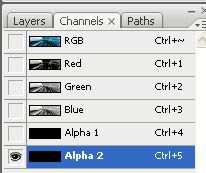


- Click
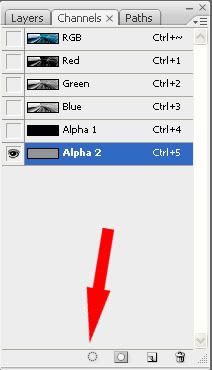
Paint Bucket Tool and select Pattern. Now paint the second channel name Alpha 2.



- Drag Alpha 2 channel to the
Load Channel selection


- Now that you have the channel alpha2 selected, go back to the layers and make a new layer called Cross Line Effect.

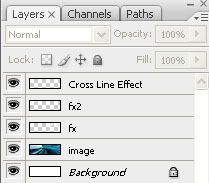


- Do not diselect the cross line effect layer. Now add some color to the cross line effect by using Gradient Tool. Make sure you are on the cross line effect layer. Change the opacity of the Cross Line Effect layer to 37%



- Create your text. Size: 20 .
You could download this font from
http://www.2-free.net/free-fonts/bionic-kid-simple-slanted/32320.html or use any other type of font.

Font name: Bionic Kid Simple Slanted


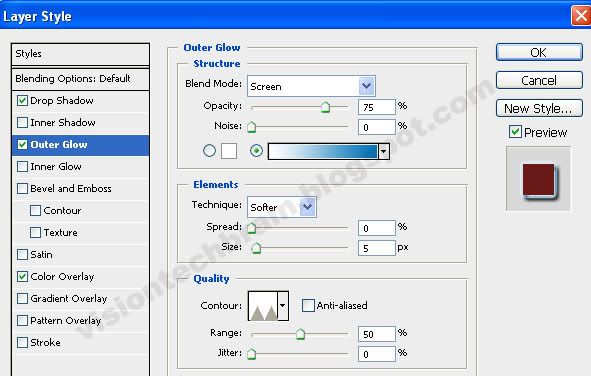
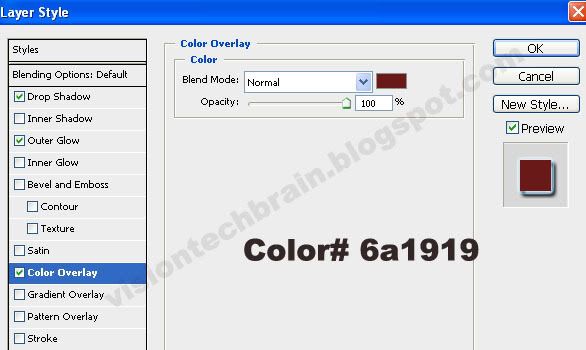
- Setting that I use.


- Finish product


Wednesday, March 26, 2008

Windows XP :: How to navigate faster in the Internet

IMPORTANT: Before you modify the registry, make sure to back it up and make sure that you understand how to restore the registry. Understand the risk, up to and including the loss of data and having to restall the Operator System. Use the informationat your own risk.

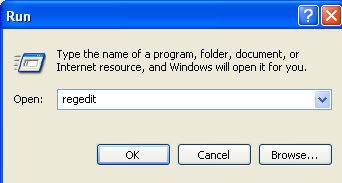
1. Click Start, then click on Run


2. Type Regedit and then press ok or Enter key


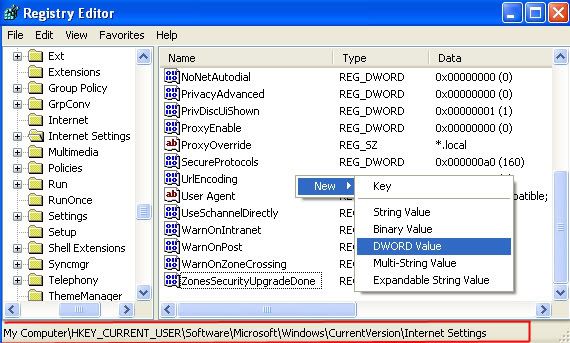
3. Navigate to

HKEY_CURRENT_USER\Software\Microsoft\Windows\CurrentVersion\Internet Settings

4. Now that you're in the correct folder, you need to create a DWORD value

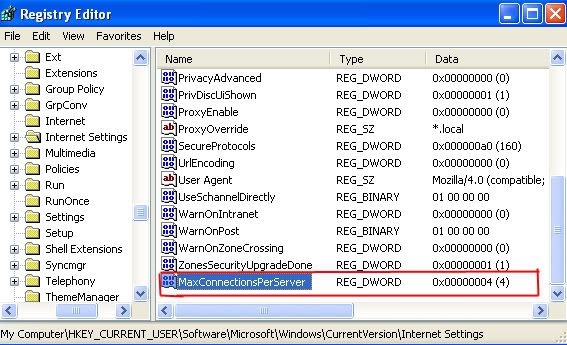
MaxConnectionsPerServer


5. Double click the MaxConnectionsPerServer value, and type in 4 or 20 if you are using ADSL


6. Close the registry editor and the changes will take place when you reboot.


322756 - How to back up and restore the registry in Windows

Tuesday, March 25, 2008

How To Add Your Own Windows XP Logon Wallpaper

IMPORTANT: Before you modify the registry, make sure to back it up and make sure that you understand how to restore the registry. Understand the risk, up to and including the loss of data and having to restall the Operator System. Use the informationat your own risk.

1. Click Start, then click on Run


2. Type Regedit and then press ok or Enter key


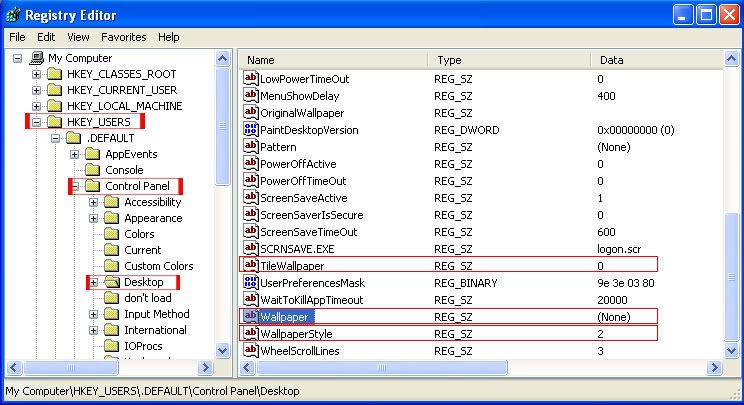
3. Navigate to
HKEY USERS\ .DEFAULT\Control Panel\Desktop


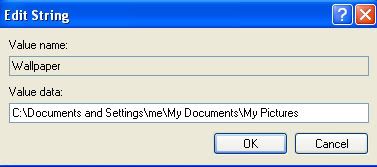
4. Double click the wallpaper value, and type in the full path of your image and the filename.


Options:

5. To tile the image set "TileWallPaper" to 1

6. To Stretch the wallpaper set "WallPaperStyle" to 2

7. Close the registry editor and the changes will take place when you reboot.

322756 - How to back up and restore the registry in Windows

How to check Windows Vista and XP if our system is running 32-bit or 64-bit version.

In this tutorial we are to learn how to check Windows Vista and XP system if we are running 32-bit or 64-bit version. Why would we want to do that? Well, sometime we forget what type of system we are running. Maybe we bought a software that is 64-bit and we installed it in a 32-bit system. Well many things could happen for example; software could stop working or wouldn’t work at all or system crash or freeze.

Windows Vista

Method 1

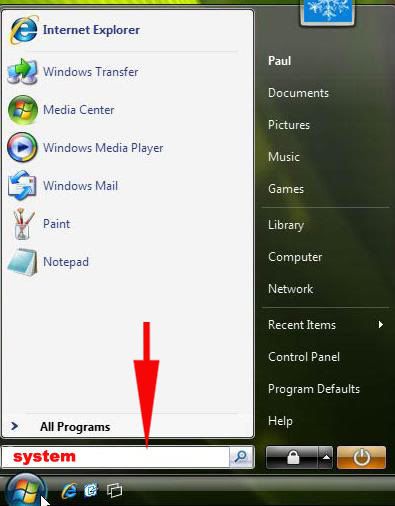
1. Click Start, then click on Run

2. Type System and then press Enter


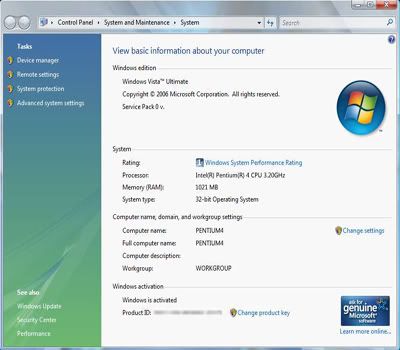
3. System application opens. In System, look for System Type is located in the center. If the value of the System Type is

- 32-bit Operating System
- 64-bit Operating System


Method 2

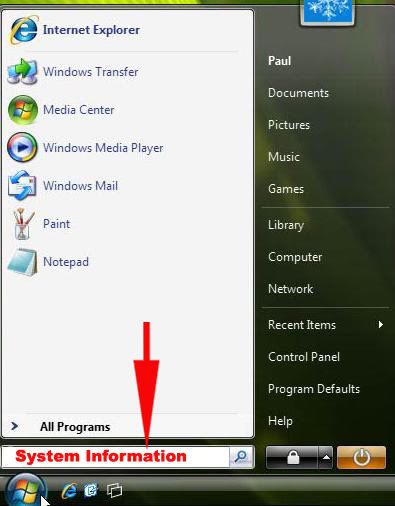
1. Click Start, then click on Run.

2. Type System Information and then press Enter.


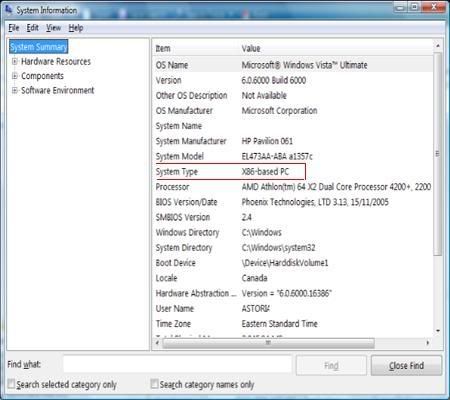
3. System Information application opens. In System Information, look for System Type is located in the center. If the value of the System Type is

- x86-base PC (32-bit Version)
- x64-based PC (64-bit version)


Windows XP Professional

Method 1

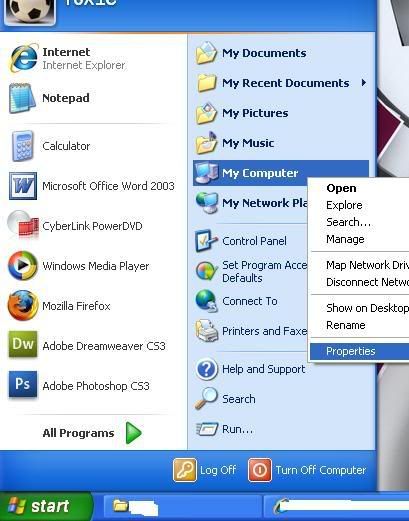
1. Click Start - My Computer

2. Then, Right Click on My Computer and Click Properties


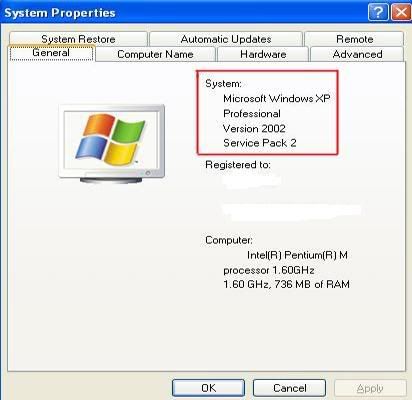
3. System Properties application opens. In System Properties, Click the General Tab. Look for the Operating System name. If the name of the Operating System isas

- Microsoft Windows XP Professional Version 2000 (year could be different). (32-bit Version)


- Microsoft Windows XP Professional x64 Edition Version (64-bit version)


Method 2

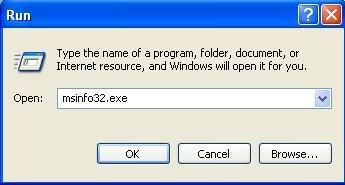
1. Click Start, then click on Run.

2. Type msinfo32.exe and then press Enter.


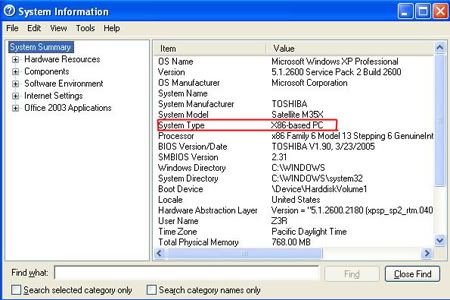
3. System Information application opens. In System Information, look for System Type is located in the center. If the value of the System Type is

- x86-base. (32-bit Version)
- x64-based (64-bit version)


Method 3

1. Click Start, then click on Run.

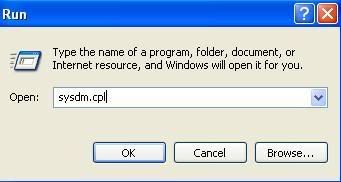
2. Type sysdm.cpl and then press Enter.


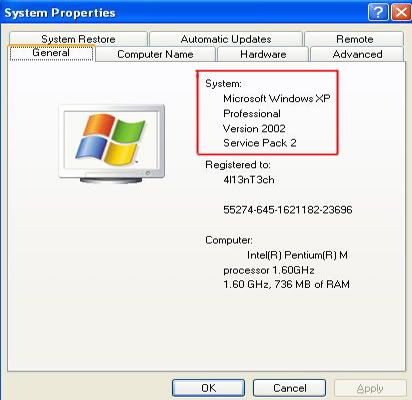
3. System Properties application opens. In System Properties, Click the General Tab. Look for the Operating System name. If the name of the Operating System isas

- Microsoft Windows XP Professional Version 2000 (year could be different). (32-bit Version)
- Microsoft Windows XP Professional x64 Edition Version (64-bit version)