Showing posts with label Windows Vista. Show all posts

Tuesday, April 1, 2008

How to Disable Menubar in Windows Vista Explorer?

In Windows Vista, “Menubar” in Windows Explorer is disabled by default but you can enable it from “Organize -> Layout -> Menu Bar” option in Explorer.
Sometimes users face a very strange problem, no matter what option they choose the menubar is always displayed. Even they uncheck the option to show menubar, it doesnt work and they find no way to disable the menubar in Explorer.


If you are also one of those ppl who are facing this problem, then you have come to the right place. Actually its a known bug in Windows Vista. It happens when you disable “Show preview and filters” option.
Don’t worry, just follow these simple steps and you’ll be able to enable / disable menubar in Explorer:

Method A

1.
Open My Computer and goto “Organize -> Folder and Search Options“.
2. Now enable “Show preview and filters” option as shown in following screenshot:


3. Apply it and your problem will be solved.

Method B

1. Type sysdm.cpl in RUN or startmenu search box and press Enter.
2. Now goto “Advanced” tab and click on “Settings” button in “Performance” section.
3. Now enable “Show preview and filters in folder” option as shown in following screenshot:


4. Apply it and it’ll fix the problem.

Free Support for Windows Vista SP1 Installation


For those who encounter problems when upgrade to Windows Vista SP1, here is a good news for you. Microsoft is giving away free support for Windows Vista SP1 issues. The unlimited installation and compatibility support is available at no charge until March 18. 2009.
There are 3 support options:
Email, Online Chat and Phone. Currently, email support response time is 1 business day. Online chat waiting time is over 60 minutes(!). The phone support is only available for users who have software assurance agreement, TechNet/MSDN subscrition, or Microsoft Partner Program.

Oh, the free support is for U.S. users only. (duh!)

Thursday, March 27, 2008

Portable Edition of Mozilla Firefox 2.0.0.13 Released

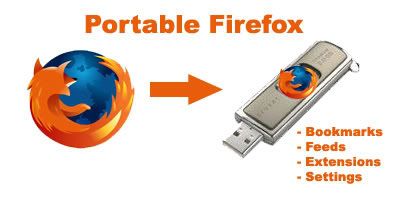
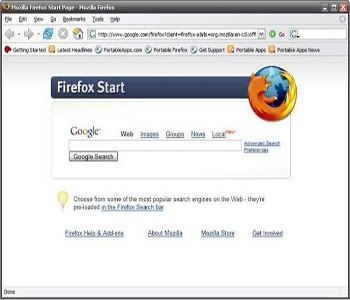
Freeware :: Portable Edition of Mozilla Firefox version 2.0.0.13 has been released. Now you can take your browser, bookmarks, feeds, extensions and settings on the go. This new release updates the included Firefox to 2.0.0.13 fixing some security and stability issues and updates the included launcher.

File size: ~25 MB
System Requirements: Windows 98/Me/2000/XP/Vista, Wine on Linux/UNIX

completely free. What are you waiting for? Go forth and
download

For more information Portable Mozilla Firefox Edition

Tuesday, March 25, 2008

How to check Windows Vista and XP if our system is running 32-bit or 64-bit version.

In this tutorial we are to learn how to check Windows Vista and XP system if we are running 32-bit or 64-bit version. Why would we want to do that? Well, sometime we forget what type of system we are running. Maybe we bought a software that is 64-bit and we installed it in a 32-bit system. Well many things could happen for example; software could stop working or wouldn’t work at all or system crash or freeze.

Windows Vista

Method 1

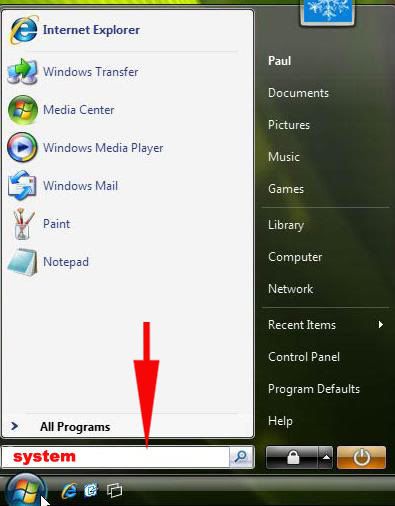
1. Click Start, then click on Run

2. Type System and then press Enter


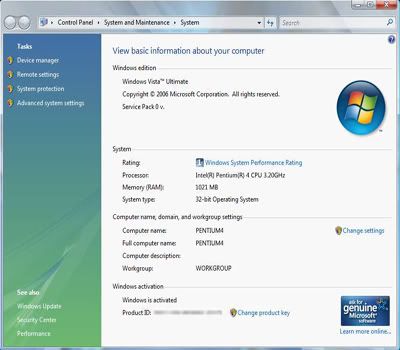
3. System application opens. In System, look for System Type is located in the center. If the value of the System Type is

- 32-bit Operating System
- 64-bit Operating System


Method 2

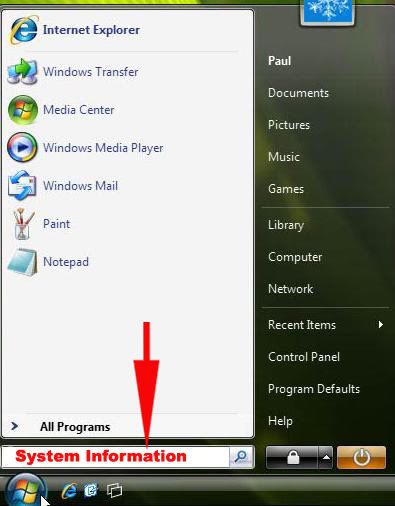
1. Click Start, then click on Run.

2. Type System Information and then press Enter.


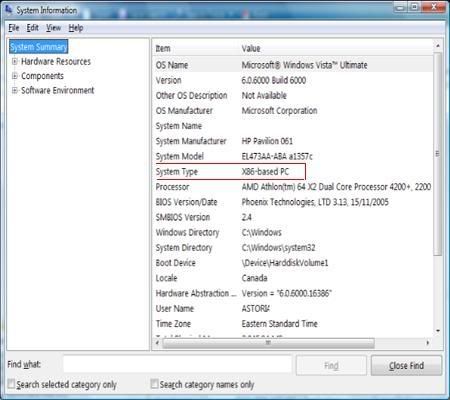
3. System Information application opens. In System Information, look for System Type is located in the center. If the value of the System Type is

- x86-base PC (32-bit Version)
- x64-based PC (64-bit version)


Windows XP Professional

Method 1

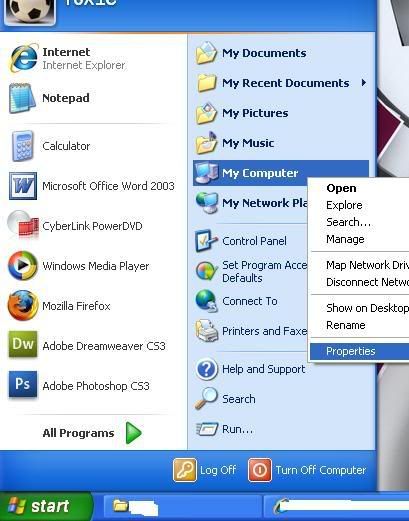
1. Click Start - My Computer

2. Then, Right Click on My Computer and Click Properties


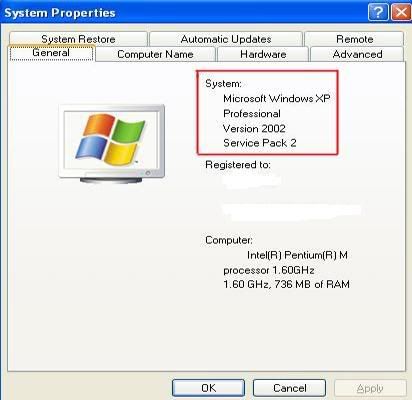
3. System Properties application opens. In System Properties, Click the General Tab. Look for the Operating System name. If the name of the Operating System isas

- Microsoft Windows XP Professional Version 2000 (year could be different). (32-bit Version)


- Microsoft Windows XP Professional x64 Edition Version (64-bit version)


Method 2

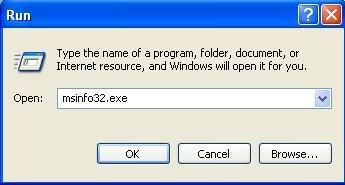
1. Click Start, then click on Run.

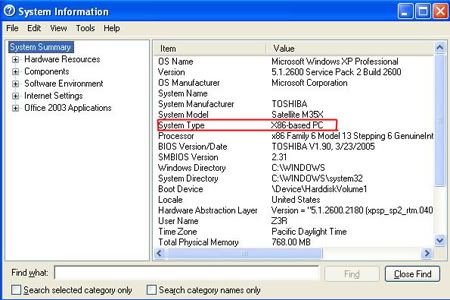
2. Type msinfo32.exe and then press Enter.


3. System Information application opens. In System Information, look for System Type is located in the center. If the value of the System Type is

- x86-base. (32-bit Version)
- x64-based (64-bit version)


Method 3

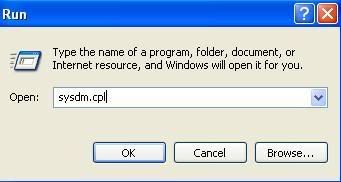
1. Click Start, then click on Run.

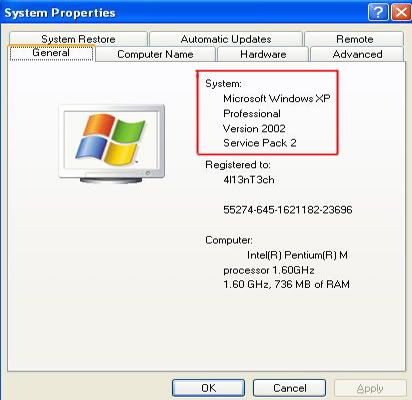
2. Type sysdm.cpl and then press Enter.


3. System Properties application opens. In System Properties, Click the General Tab. Look for the Operating System name. If the name of the Operating System isas

- Microsoft Windows XP Professional Version 2000 (year could be different). (32-bit Version)
- Microsoft Windows XP Professional x64 Edition Version (64-bit version)